Welcome to this Drupal video. This one is about how to add a basic page and get
all the way through the point where you want to publish the page. So we're
going to add a basic page, we're going to add content to that page talk about some
formatting choices, and then we'll talk about the process to publish the page.
We will along the way include the option of how do you copy and paste content from a
different program such as Microsoft Word. So we're going to click on the button
for My Workbench. And when we're in My Workbench we're going to then click on
the tab Create Content. There are a variety of different kinds of pages that
we can add but the focus for this video is on Basic Page . So we're going to click
on Basic Page and it will bring a new blank basic page to us. The fields that
have asterisks are required fields so the title is a required field ,I've typed
in Robin's Basic Page before so that's popping up as a populated field for me
if I want to use it again. The title is what the user will see on the menu in
your website so although it's editable you might want
to think a little bit about what you want to call that, make it explanatory to
the user, so they're looking at the choices on the menu they understand what
the page represents. The other required field here is Content Group and although
I only have one "Default CG", and most departments will will have that
choice, there are departments that have more than one content group and so as a
result even though I only have one it doesn't drop in for me automatically.
Every time I create a new basic page I have to apply the default content group.
And content group is just the layout, it's the colors, the fonts, the layout of
the page itself and that's just set by the department. As I mentioned some
departments may have more than one. Then I'm going to click in the Body and I'm going
to type in some content. A little phrase "Here's some content" and that's one way
to get some content in. The next choice is that you can also copy and paste
content from Word. Not only can you type in content, you can
copy and paste content from other programs such as Microsoft Word, somebody
sends you an Outlook email, for example. You copy and paste from either of those
programs and it's going to allow you to bring content in without having to type
it from scratch. So I have a little Word document created. This has some default
text and it has some placeholder text in it. I'm using ctrl C for copy but you can
also right-click and choose Copy that way. Now when I come back to Drupal I'm
not gonna simply do the paste, even if you know the keyboard shortcuts. Instead
sometimes the browser has a security setting that won't allow you to paste
directly, so Drupal has for City and County of San Francisco, a couple of
built-in buttons that help you paste in content in different ways. One is a
clipboard with a "T" for plain text if you want to drop off any formatting you
could paste in as plain text. In my case I'm pasting from Word. I have a little
clipboard with a "W" button. It pops up a little dialog box for me. Then I'm going
to use my keyboard shortcut of Ctrl+V or Command+V if you're on the Mac, and it
will paste my content in. And that way we override any of the browser security
settings that might be present and not allow us to paste correctly. And when I
say okay there's my content that I have here. Now Drupal is what's called a
WYSIWYG interface meaning what you see is what you get from a formatting
perspective and so if I go to some of my content like my phrase, my word "content"
here up on the top, I can make this say bold and italic. When I click away from
it it is bold and italic. So very similar to programs like Microsoft Word. What is
unique to Drupal, to the web, to the HTML language the web is based on, is that
they have what they call "Heading" styles and that helps you divide content
visually on the page into different sections to help make it easier for
the reader or the user of your page to read and understand the content. So
Heading 2, I actually just make this a phrase called Heading
2 so I can show you I can apply that style. I have here a button called "Normal"
and that has a variety of different kinds of built-in formatting. Oone of them
is the Heading styles,. There can be up to six different heading levels on the page.
You don't see a Heading 1 because that's what the title is automatically.
That's the kind of biggest and boldest on the page and so that's automatically
Heading 1. But Heading 2 I can apply here, I have my little phrase here and I have
another phrase, I have Heading 3 down below this next paragraph. I'm gonna apply
Heading 3 but I don't want you to think it's one to a customer, only one
of these heading styles per page, so I have another example that I also called
Heading 3 so I'm also going to apply that same Heading 3 style too as well to
show that you can apply the same style on more than one location on your page.
Once you've got your content in, you've done your formatting in the way that you
want to, then what we're going to do is use the outside scroll bar because you
now may have enough content that you can't just scroll within Drupal
that's gonna be the content of the page itself. At the bottom of the web page you
will see an option to check the check box "Provide the menu link" and Drupal
then will pick up your basic page Title from above, and you get the opportunity
to choose what menu you'd like to put this page under in your web page. I'm
gonna put it under the "About Us" menu on my web page itself. And when I say "Save"
it's gonna go in and save my page and bring me into the page but it isn't
automatically published, as I mentioned. It goes through through this review
process. So I created my page by adding a Basic Page or taking an existing page
and coming in to draft mode on it. Now the next step would be to bring this
page into Needs Review right here. This is a choice that I have. I can apply
Needs Review. After I've applied Needs Review, depending on the role some
departments have an official editor who then needs to publish the page, some
departments allow individual users to both go
through Needs Review and also Publish the page as well. And the purpose of that
would be if I had any links, to let me check and make sure that the links
worked. If I had any images, that the images looked the way that I wanted them
to, they were the right size and shape and lined up with the content in the
correct way. So really it's all about just allowing me the opportunity to review
the content of my page and make sure that it looks the way that I want it to.
Mine does, so I'm going to go up, oh I want to point out that's the Heading 1, "Robin's
Basic Page", I didn't have to say that style, that style got applied
automatically because that was the content that I put up in the Title text
box at the top of the page. Here's my Heading 2, here's my Heading 3 and
my second Heading 3 down here at the bottom. So now I'm gonna have this Needs
Review state. I'm gonna apply that and I'm still not quite all the way done
because again, within some departments this might now get passed on to another
person who has the editor role within the department to actually go through
and review content one more time before it's published out on to the website
where the public can access the content. In this case this is all fine so I'm
gonna go ahead and say Apply and now my web page is Published. This is what it
would look like to the user and more importantly if I look at my About Us
menu, here is my "Robin's Basic Page" on that About Us menu as well. It's
officially published out to the community, if this was to be a public
page. It's not, it's a training site. And if I need to go in and make changes
after I have published the page or at any point along the way when it's in the
Needs Review state or the Draft state, for example, this button will say either
depending on the state, "New draft" as it does now, or it will say "Edit draft". So
when I click on that, in either case it brings me into Draft mode of my existing
page. It's not "New draft" like a new page. It's a new draft of the page because
now I have a Published version. If I go in and make some
additional changes, "Here is more content". And again, I'm gonna use my outer scroll bar to
scroll all the way down to the bottom. I'm going to save my changes
that I have made. I now have two versions of this same page.
So I have this version which is the Draft mode version that's got my
additional sentence "Here is more content", for example. But I also have, if I go to
About Us officially and I scroll down far enough to see my Published version
of my basic page. When I click on that basic page, it doesn't have that
additional paragraph. sorry that additional sentence yet. So that's
important to realize, until you go through the process of applying the
Needs Review state, applying the Published state, you do have two copies
of the page if it's an existing page and you've made a change to it. And that's
where you would use My Workbench menu and possibly go either look at Recent
Edits up here is one way to get into the page itself to walk through that process,
or under My Drafts or My Needs Review tabs over here in the upper right of
this screen, that would also let me look and see, depending on the state of the
page, where things are. And then I would walk through again that process. Thanks
for learning how to create a basic page, how to add content from a program such
as Microsoft Word or by typing in content, how to apply some basic
formatting to that content, and then how to save the draft of the page as part of
your menu structure on your website, and then being able to apply the Needs
Review moderation state and the Published moderation state.
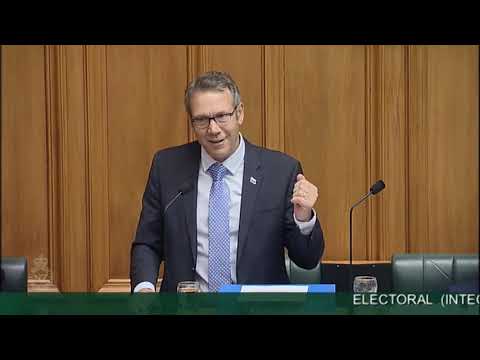 For more infomation >> Electoral (Integrity) Amendment Bill - Committee Stage - New Clause 7 - Video 9 - Duration: 5:32.
  For more infomation >> Electoral (Integrity) Amendment Bill - Committee Stage - New Clause 7 - Video 7 - Duration: 5:16.
  For more infomation >> Electoral (Integrity) Amendment Bill - Committee Stage - New Clause 7 - Video 8 - Duration: 5:14.
  For more infomation >> [HD] Liam Lis - Rockstar (Official Music Video) - Dalszöveggel - Duration: 4:05.
  For more infomation >> Electoral (Integrity) Amendment Bill - Committee Stage - New Clause 7 - Video 14 - Duration: 4:33.
  For more infomation >> Electoral (Integrity) Amendment Bill - Committee Stage - New Clause 7 - Video 15 - Duration: 4:11.
  For more infomation >> Tuesday Evening Video Forecast 9/25 - Duration: 4:05.
  For more infomation >> Electoral (Integrity) Amendment Bill - Committee Stage - New Clause 7 - Video 10 - Duration: 5:18.
  For more infomation >> Electoral (Integrity) Amendment Bill - Committee Stage - New Clause 7 - Video 13 - Duration: 10:28.
  For more infomation >> Electoral (Integrity) Amendment Bill - Committee Stage - New Clause 7 - Video 11 - Duration: 5:14.
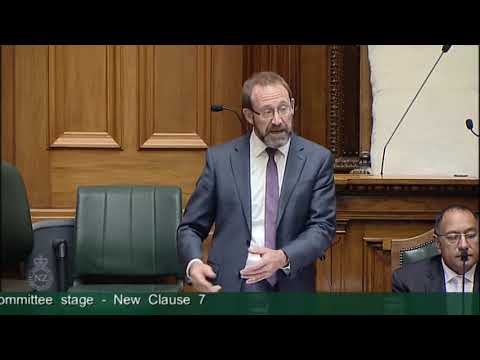 For more infomation >> Electoral (Integrity) Amendment Bill - Committee Stage - New Clause 7 - Video 12 - Duration: 5:15.
  For more infomation >> Electoral (Integrity) Amendment Bill - Committee Stage - New Clause 7 - Video 5 - Duration: 5:14.

Không có nhận xét nào:
Đăng nhận xét